Sunday, 16 February 2014

Update statement in SQL

Update statement in SQL


Update statement in SQL is generally to update a value in a table. We should generally be very conscious while using this statement. If you do not specify where clause in update statement all the records in the specified column will be updated with the mentioned value and the entire column will contain only one value

Consider below table 'test'


If we use a Update statement as below without any where condition then all the values fname will be set to 'ABCD' i.e. all the four rows in the fname column will have 'ABCD' as value

update table test
set fname = 'ABCD'

Hence, it is always recommended that you specify a where condition which fulfill all the criteria, as below

update table test
set fname = 'ABCD' where lname = 'abc1'

Here, only the row which has 'abc1' as lname will be updated

We can also update multiple columns in a single update statement as below

Update table tablename
Set Column1= '', Column2='',......


how to add a column to an existing table in sql

Add a column in an already existing table in SQL


To add a column in an already existing table, you will need to alter the existing schema of that table. To achieve that we will have to use ALTER statement.

Consider a table named 'Test' which is as below:


Suppose we need to add another column called 'Ids' which is an identity column and give a unique number to each column, you can easily achieve this using the below query

alter table dbo.Input
add ids bigint identity(1,1) 

Select INTO in SQL

Select INTO in SQL


Select into is used to make a new table which will contain the data that is the result set of the query in which it is used.

For Example:

Consider a name named 'Test' structure of which is as below


Now, we will try this with a simple query as below

Select * into test123 from test

a new table named 'test123' will be created in the same database in which the 'test' table exists. The test123 table will be exactly like the test table. so both table will have the same schema and same data in it.

Now, we will add condition to the above query as follows:

Select fname,lname into test123 from test where lname like 'abc'

In this  case, a table will be created with name 'test123' which will have only two column fname and lname and also only two rows from the table test will be copied into test123 which satisfies the condition of lname like 'abc'

Select Into is generally used to make a backup of a particular data set.


Saturday, 15 February 2014

T- SQL Interview Questions and Answer

T- SQL Interview Questions and Answer

  1. Different type of statements in SQL?
  2. What's the use of INTO keyword in Select statement in SQL?
  3. How do you add a column in an already existing table in SQL?
  4. How to update a value in a column in SQL?
  5. Can you rename an object in SQL?
  6. What is identity in SQL and whats the use of it?
  7. How to reset an identity?
  8. Difference between having and where clause?
  9. What data types have you used to setup a table?
  10. Whats the different between nvarchar and varchar?
  11. Difference between delete and truncate command ?
  12. Difference between truncate and drop command?
  13. What are joins in sql and explain different types of Joins?
  14. Difference between Union and Union All?
  15. What are Indexes?
  16. Different Types of indexes?
  17. Difference between clustered and non - clustered indexes?
  18. What are Views in SQL?
  19. What is CTE in SQL?
  20. Difference between CTE and Views?
  21. What is temp table?
  22. What is temporary variable?
  23. Difference between temp table and temp variable?
  24. Difference between temp table and CTE?
  25. What is Sub-Query in SQL?
  26. What is Nested query in SQL?
  27. What is inline Query in SQL?
  28. What are ranking functions in SQL?
  29. Difference between Rank and Dense Rank?
  30. Which Ranking functions is used to delete duplicate rows from a table? 
  31. what is store procedure?
  32. what is UDF in SQL?
  33. difference between a store procedure and function in SQL?
  34. whats the use of NO COUNT?
  35. What is charindex function used for in SQL?
  36. What is substring function used for in SQL?
  37. What is coalesce function in SQL?
  38. difference between coalesce and ISNULL function?
  39. what is datediff function?
  40. what is dateadd function?
  41. explain functionality of Case function?
  42. how to use Case function in Select statement?
  43. Write a query to generate Running Total?
  44. Write a query to generate Running Average Values?
  45. What is BCP in SQL?


Sunday, 9 February 2014

Stack Chart in SSRS

Stack Chart in SSRS 2008


For stack chart we will try to show Expense, online profit and offline profit according to locales in SSRS

Stack Chart in SSRS 2008, SSRS basics
  • Drag n Drop charts from the toolbox to the report
  • select stack chart from the options
  • In values section, select expenses, online revenue and offline revenue and select locale in category
Now my main focus should be on expenses but since the number is too low it is not quite visible in stack chart, hence here I will have to use calculate vertical axis as logarithmic, to do show execute following steps


  • Right click on vertical axis and select vertical axis property
  • Select "Use logarithmic Scale" and click on OK. You will observe that know the vertical axis is calculated logarithmic-ally
  • Click on preview window and preview the chart


3D Pie chart in SSRS

                              3D Pie chart in SSRS


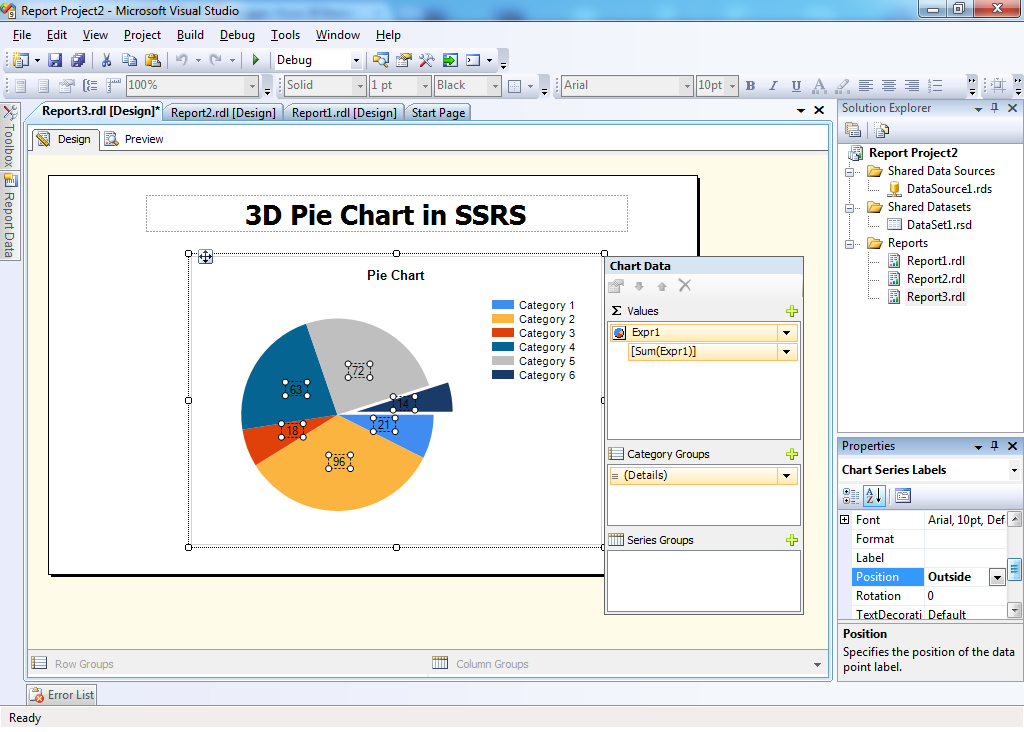
Here we will show Page Views according to Locales in Pie Chart

The locale column contains the locale names and page views column contains the respective number of page views 

  • Add a report and map the data set with report
  • From the toolbox drag n drop chart to the reports 

  • Select Exploded Pie chart

  • Enter Page Views in Values Section and locale in series section

  • Right Click and select show data labels
  • Select data labels and from the properties window set position property to Outside, so that the labels are displayed outside the pie chart


  • Right click and select chart properties
  • In the chart properties, select 3D display option and check the Enable 3D option

  • Click on preview window and view the chart


Saturday, 1 February 2014

Pie Chart in Tableau

                                                            Pie Chart in Tableau

Arrange your data as below:


Open tableau workbook and connect to the data source

Drag and Drop date column into the Rows section


Drag and Drop Sections to Color field

 Drag and Drop Count to Size fields and your Pie cart will be ready
Download the sample Pie chart Tableau workbook from below


Sunday, 26 January 2014

Stack Chart in Correlated Chart using Tableau

Tableau Sample View 10

Tableau Sample View 9

Connect SSRS with Excel Step by Step

                                                Connect Excel as source to SSRS

Click on create 'Add new data scource'


Choose ODBC as Connection Type and click OK


Choose Excel System Data source name

Select 'Use  Connection String'

Select Excel as 'Machine Data Source' and click on New


Select User Data Source and Click on Next


Select 'Microsoft Excel Driver'  and click on Next


Click On Finish


Give Data Source as Name


Select the Excel file and Click on OK


Tableau Sample View 8

two bar graph in one view - Tableau

Tableau Sample View 7

Tableau Sample View 6

Tableau Sample View 5

Tableau Sample View 4

Awesome Viz using Tableau

Tableau Sample View 2

Saturday, 7 December 2013

Creating simple Bar chart in Tableau

                                             Creating simple Bar chart in Tableau

This is my first post on Tableau. Tableau is a fantastic data visualization tool. It help us to create some fantastic dashboards using this tool.

In this post we will learn how to create a simple bar chart in the dashboard.


As shown in the above screen shot, my data contains list of countries the regions and sub-region in which they falls.


We will now create a bar chart which will display the no. of countries according to the regions.

Step1: Drag and drop Region field in the dimension section to columns and Number of countries field in the row section.


A graph will be plotted automatically as shown in the above figure.

Step2: To add label to the graph, drag and drop the 'number of countries' field in the label section.


Now the labels is visible on the graph

Step3: Now we will color the graph according to the 'Number of countries'. The darker the color the larger the number of countries available in the region.


Step4: Sort the graph according to the number of countries. Go to column field and click on the 'Region' field and select the option sort -> ascending-> sort by field-> click OK.


You can also sort the chart in descending order by selecting the descending option.


Friday, 22 November 2013

Difference between Char,Varchar and Nvarchar in SQL

                Difference between Char,Varchar and Nvarchar in SQL


Char DataType:

  • Char Datatype is used to store fixed length characters. 
  • If declared as Char(100) then it will allocate space of memory for 100 characters, no matter how much characters is actually stored in the column
Varchar DataType: 
  • Abbreviation for Varchar is Variable length characters
  • It is used to store Non-Unicode characters
  • Since the name contains 'Variable' it specifies that the memory allocation varies as per the characters stored in the column. For e.g 'Nadir' is stored in the column then the memory allocation would be 5. It allocates 1 byte per character
  • Maximum length for this data type is 8000
  • Varchar supports collation which requires 1 byte memory storage per characters
  • No other language except the once requires 1 byte memory storage per characters can be stored for example: English language characters can be stored in varchar
Nvarchar DataType:
  • Abbreviation for Nvarchar is Uni-code variable length characters
  • It is used to store Unicode characters
  • The memory allocation varies similar to varchar datatype except it allocates 2 byte per characters
  • Maximum length for this data type is 4000
  • Nvarchar supports all types of collation
  • Multiple languages can be stored in nvarchar datatype by using prefix 'N'. Below example explains this point.
                 e.g: Declare @str nvarchar(4000) = N'最低点'

                                                               Highlights:
  1. As both varchar and nvarchar datatypes are variable in nature it acquires space as per the characters stored irrespective of the max limit specified
  2. It is always recommendable to use varchar compared to nvarchar when the data is in no other language then English
  3. Query execution for varchar is generally faster compared to nvarchar

Sunday, 17 November 2013

Data Flow Task in SSIS

                                    Data Flow Task in SSIS


We will begin with the tutorial for Data flow task in SSIS. SSIS is one my most favorite topic and simply like to work on this technology.

There is always a misconception between control flow and data flow. Hence we need to know the difference between both.

Control flow

                  A control flow consists of one or more tasks and containers that execute when the package runs. To control order or define the conditions for running the next task or container in the package control flow, we use precedence constraints to connect the tasks and containers in a package. A subset of tasks and containers can also be grouped and run repeatedly as a unit within the package control flow. SQL Server 2005 Integration Services (SSIS) provides three different types of control flow elements: Containers that provide structures in packages, Tasks that provide functionality, and Precedence Constraints that connect the executables, containers, and tasks into an ordered control flow.

Data flow
                A data flow consists of the sources and destinations that extract and load data, the transformations that modify and extend data, and the paths that link sources, transformations, and destinations The Data Flow task is the executable within the SSIS package that creates, orders, and runs the data flow. A separate instance of the data flow engine is opened for each Data Flow task in a package. Data Sources, Transformations, and Data Destinations are the three important categories in the Data Flow.


Data flow as name suggests is use to transfer data from source to destination. Data flow should always contain a source and a destination. If  business demands us to modify our data while transferring data from source to destination we might need to use transformations to achieve our task.


Following are some commonly used transformation that are available:

AGGREGATE  - It applies aggregate functions to Record Sets to produce new output records from aggregated values.
AUDIT  - Adds Package and Task level Metadata - such as Machine Name, Execution Instance, Package Name, Package ID, etc.. 
CHARACTER MAP - Performs SQL Server level makes string data changes such as changing data from lower case to upper case.
CONDITIONAL SPLIT – Separates available input into separate output pipelines based on Boolean Expressions configured for each output.
COPY COLUMN - Add a copy of column to the output we can later transform the copy keeping the original for auditing.
DATA CONVERSION - Converts columns data types from one to another type. It stands for Explicit Column Conversion.
DATA MINING QUERY – Used to perform data mining query against analysis services and manage Predictions Graphs and Controls.
DERIVED COLUMN - Create a new (computed) column from given expressions.
EXPORT COLUMN – Used to export a Image specific column from the database to a flat file.
FUZZY GROUPING – Used for data cleansing by finding rows that are likely duplicates.
FUZZY LOOKUP -  Used for Pattern Matching and Ranking based on fuzzy logic.
IMPORT COLUMN - Reads image specific column from database onto a flat file.
LOOKUP - Performs the lookup (searching) of a given reference object set against a data source. It is used for exact matches only.
MERGE - Merges two sorted data sets into a single data set into a single data flow.
MERGE JOIN - Merges two data sets into a single dataset using a join junction.
MULTI CAST - Sends a copy of supplied Data Source onto multiple Destinations.
ROW COUNT - Stores the resulting row count from the data flow / transformation into a variable.
ROW SAMPLING - Captures sample data by using a row count of the total rows in dataflow specified by rows or percentage.
UNION ALL - Merge multiple data sets into a single dataset.
PIVOT – Used for Normalization of data sources to reduce analomolies by converting rows into columns

UNPIVOT – Used for demoralizing the data structure by converts columns into rows incase of building Data Warehouses. 

Saturday, 16 November 2013

Difference between UNION and UNION ALL

                                    Difference between UNION and UNION ALL


Both Union and Union all statements are use to merge data from multiple queries which has same number of columns. Also, the data types of the column should be same.

We will look into the difference between both operators using an example. We have the following two tables

Empdetails:


Custdetails:


Union: Union merge data from two or  more queries and returns a sorted unique result set. Since this operator provides distinct result set it takes more time than Union All.

Query:

               select * from EmpDetails union  select * from custdetails   
Output:


Union All: Union all merge data from two or more queries and returns non-unique result set. Since this operator does not perform distinct on the result set, it's performance is much faster than Union operator

Query:

            select * from EmpDetails union all select * from custdetails 

Output:


Following are the constraints that are associated with UNION and UNION ALL operator:

  • The tables should contains the same number of columns
  • Columns in the tables must be of the same data type
  • Order by clause should be applied to the final result set
  • Column name for the result set would be of the first query mentioned


See Also:   Different Types of Joins in SQL   , Difference between CTE and View


Different Types of Joins in SQL

                          Different Types of Joins in SQL


Joins are classified into three types as below:

  1. Inner Join
  2. Outer Join
  3. Cross Join


We will look into this by considering an example. Suppose we have two table as follows:

Empdetails:


EmpSalary:


Inner and outer joins perform join on the basis of at least one field. in our example this common file is empid.
  • Inner Join: Inner join is the most commonly used join. This join returns rows when there is a match in both the tables. Now we will apply this join between the two sample tables
                     Query:
                                 select empdetails.empid,empdetails.empname,empsalary.empsalary
                                 from empdetails , empsalary where empdetails.empid = empsalary.empid

                 Now in this query we are trying to pull salary of employee from empsalary tables for the                                employees which are present in empdetails table The result for this query will be as follows:


  • Outer Join: Outer join is of three type: Left outer Join and Right Outer Join
Left outer Join: This join returns all the rows from the left table in conjunction with the matching rows from the right table. If there are no columns matching in the right table, it returns NULL values.

Example:

Query:

                     select empdetails.empid,empdetails.empname,empsalary.empsalary
                     from empdetails left outer join empsalary on empdetails.empid = empsalary.empid


Output:


Right outer Join:This join returns all the rows from the right table in conjunction with the matching rows from the left table. If there are no columns matching in the left table, it returns NULL values.

Example:

Query:


    select empdetails.empid,empdetails.empname,empsalary.empid,empsalary.empname,empsalary.empsalary

    from empdetails right outer join empsalary on empdetails.empid = empsalary.empid


Output:


Full outer Join:This join combines left outer join and right outer join. It returns row from either table when the conditions are met and returns null value when there is no match.

Example:

Query:

select empdetails.empid,empdetails.empname,empsalary.empid,empsalary.empname,empsalary.empsalary

from empdetails full outer join empsalary on empdetails.empid = empsalary.empid


Output:


  • Cross Join: It is the Cartesian product of the two tables involved. 

Example:

Query:


   select empdetails.empid,empdetails.empname,empsalary.empid,empsalary.empname,empsalary.empsalary
   from empdetails cross join empsalary 


Output:


Join conditions can be specified in either the FROM or WHERE clauses; specifying them in the FROM clause is recommended. WHERE and HAVING clauses can also contain search conditions to further filter the rows selected by the join conditions.